Deploying ASP.NET Core Razor Pages Applications to Railway
Deploying a modern web application can easily become overwhelming depending on the hosting provider you choose. Traditional cloud platforms like AWS or Azure introduce resource groups, pricing tiers, and cloud-specific terminology that can distract from shipping code.
In this guide, we’ll walk through deploying an ASP.NET Core Razor Pages application using Railway—a modern hosting platform designed to make deployment simple, fast, and developer-friendly.
We’ll cover setting up the Railway CLI, provisioning a managed PostgreSQL database, configuring environment variables, connecting Entity Framework Core to Railway’s Postgres service and automatically applying database migrations during deployment.
Assumptions
This guide assumes that you already have:
- A working ASP.NET Core Razor Pages application.
- A local PostgreSQL development database.
- Entity Framework Core migrations created and working correctly.
- The Npgsql.EntityFrameworkCore.PostgreSQL provider installed and configured.
- A DbContext registered with dependency injection.
If your application is currently using SQLite or another database provider, you’ll need to migrate to PostgreSQL before continuing.
I’ll cover the SQLite to PostgreSQL migration process in a future article.
Terminal Commands
All commands in this guide were tested using the integrated terminal in Visual Studio Code. On Windows, you can use PowerShell or Windows Terminal. On Linux and macOS, use your preferred Bash-compatible shell. Unless otherwise stated, the commands should work the same way across all three platforms.
This guide is based on the deployment workflow used in my eBook, Building Your First Shopping Basket. The original chapter covers deploying a complete production application, but for this article I’ve extracted the deployment concepts so they can be applied to any ASP.NET Core Razor Pages project.
If you’d like to explore the complete project, the companion source code is available on GitHub:
https://github.com/Schafline/Storefront
You can also find the full eBook here:
https://amazon.com/dp/B0HFYXBFJ2
A note about service names
Throughout this guide, you’ll see references to a Railway application service called Storefront and that name will also appear in several screenshots. Storefront is simply the name of the sample application used in my eBook, Building Your First Shopping Basket, from which this deployment workflow was extracted.
In your own Railway project, the application service can be named whatever you like. Whenever the guide refers to Storefront, you can think of it as your application service.
Why Railway for .NET Applications?
When choosing a deployment platform for this guide, three primary factors stood out:
-
Why not a traditional web host or ISP? While many traditional hosts are perfectly adequate, their server configurations, panel interfaces, and supported runtime versions vary wildly. Detailing a setup process across dozens of different hosting environments would lead to an unworkable number of permutations. Using Railway provides a consistent, reliable baseline so every reader follows the exact same workflow regardless of their local machine setup.
-
Why not Azure or AWS? While major cloud providers like Azure or AWS are powerful, they are complete overkill for small-to-medium applications and bring a steep learning curve. Navigating resource groups, pricing tiers, and complex security policies distracts from the core goal of shipping an application. Furthermore, while they offer free tiers, running a persistent database like PostgreSQL usually pushes you onto a paid tier quickly. It is also notoriously easy on those platforms to accidentally click a setting or provision a resource that incurs surprise charges without realizing it.
-
No credit card required for the trial Railway offers a free trial month that lets you deploy and test your full stack without entering any credit card details up front. If you are (understandably) averse to “free trials” that demand a credit card before you can even test a deployment, Railway’s friction-free onboarding is a breath of fresh air.
On top of that, Railway handles HTTPS certificates, container builds, and environment variable management out of the box while letting us pair our web app container with a managed PostgreSQL database (Npgsql).
1 Install the Railway CLI
To deploy your application directly from a local terminal, we’ll use the Railway CLI. This is a small command‑line tool that handles everything for you. Building your project, uploading it to Railway and spinning up your live site. It’s lightweight, easy to install and works on any platform.
1.1 Install Node.js
The CLI is installed using npm, which comes bundled with Node.js. Let’s do a quick check to see if you have Node.js installed.
Run the following command:
node -vIf you see a version number after issuing the command, you’re good to go.
If Node.js is not installed
Windows
Download the LTS version from https://nodejs.org/
If node -v isn’t recognised after installation, restart your terminal or reinstall Node.js as some Windows setups don’t update the PATH correctly.
Linux / macOS
The recommended way to install Node.js on Linux and macOS is nvm (Node Version Manager). It avoids permission issues and ensures npm works correctly.
Install nvm:
curl -o- https://raw.githubusercontent.com/nvm-sh/nvm/v0.39.7/install.sh | bashReload your shell:
source ~/.bashrc # or ~/.zshrc on macOSInstall the latest LTS version of Node:
nvm install --ltsVerify:
    node -v
    npm -v
Once Node.js is installed, the npm command will be available.
1.2 Install the Railway CLI:
npm install -g @railway/cliThis installs the CLI globally so you can use the railway command from any project.
2 Login to Railway
Now that the Railway CLI is installed, the next step is to sign in so the CLI can connect to your Railway account. This only takes a moment.
Open a terminal and run:
railway loginThe CLI may display a short message about optional telemetry collection. After that, it may ask whether it should open your browser to complete the login:

Press Y and your browser will open to Railway’s login page:
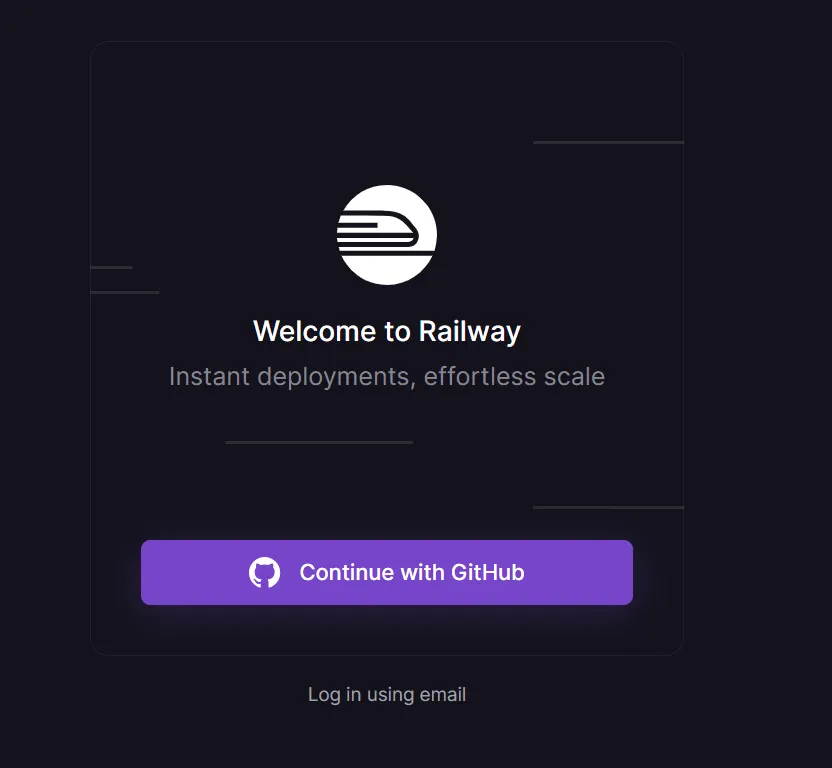
Click Continue with GitHub to sign in.
After signing in, Railway will ask which workspaces the CLI should be allowed to access. Choose All Workspaces and click Authorize:
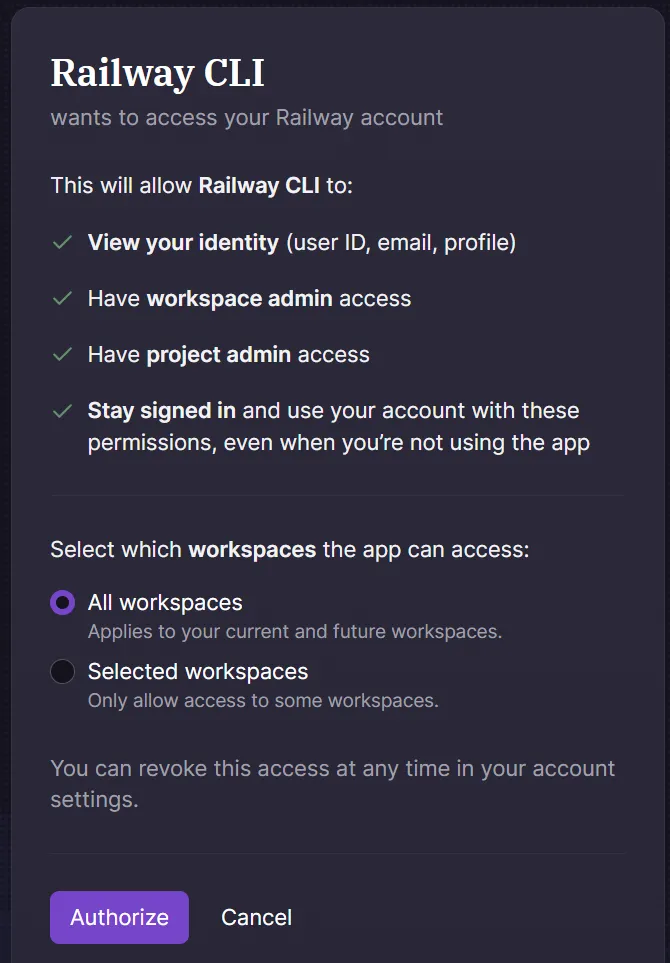
At this point, Railway normally completes the login and shows an Authentication Successful message. You can close the browser tab and the terminal will confirm that you’re now logged in and display your Railway identity.
Troubleshooting Login Sessions:
Occasionally, especially when signing in with email, Railway may display a “session expired” message. If this happens, close the browser tab, cancel the terminal prompt usingCtrl+C, runrailway loginagain, and re-authorize.
3. Initialize Your Project
With the CLI installed and authenticated, connect your local project to Railway.
Inside the root folder of your application in a terminal window, run:
railway initRailway will guide you through two quick prompts:
-
Select a workspace Railway automatically selects your default workspace (usually called My Projects). There’s nothing to change here, just press Enter
-
Project Name Enter a name for your project or press Enter to let Railway generate a name automatically
Your terminal will look something like this:
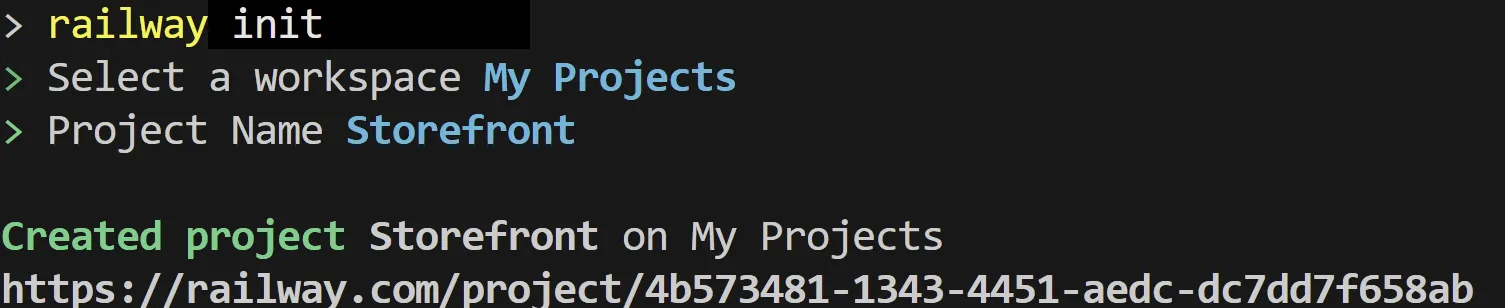
Once you hit return, Railway creates a new project in your account and links your local folder to it.
To verify the link, run:
railway statusBefore your first deployment, this will show something like:
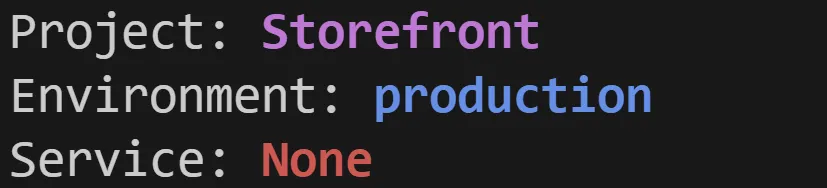
The Service:None line is expected; Railway only creates a service after your first deployment.
At this point, your local app is officially connected to Railway and ready to deploy.
4. Deploy Your Application
4.1 Create a .railwayignore file
To prevent deployment timeouts and keep uploads fast, create a .railwayignore file in the root of your project. This works just like .gitignore.
Create .railwayignore and add the following entries:
    bin/
    obj/
    *.user
    *.db
    *.sqlite
    *.mdf
    *.ldf
    .vscode/
    .idea/
Important: Do not add the
wwwroot/libfolder to the ignore list. This folder contains Bootstrap, jQuery, and client-side libraries required in production.
4.2 Deploy with the Railway CLI
From the root of your project, run:
railway upOn the first run, Railway automatically builds your application, compresses the output, creates a project service, uploads your files, and streams the build logs in real time.
On subsequent deployments, the CLI remembers which service this folder is linked to and will ask you to confirm it before continuing. Just press Enter to accept the default service name and Railway will deploy your updated app:

After you confirm, the CLI provides clear feedback:
-
It tells you that your files have been compressed
-
It shows that the upload has completed
-
And when the build starts, it prints a build log URL you can open in your browser
Once those confirmations appear, Railway streams the full build output directly into your terminal. This includes all compiler messages, warnings, dependency restores and any other information produced during the build. There can be quite a lot of output here and that’s normal; it’s the same information you would see if you were building the project locally.
ℹ️ Tip: Seeing a reqwest error / operation timed out in your terminal?
Don’t panic if your terminal displays a reqwest error: operation timed out for backboard.railway.com after running railway up. The Railway CLI (built in Rust using the reqwest HTTP library) uses long-polling to stream build logs back to your terminal. If the local polling connection times out, your deployment is still safely building and running in the cloud. You can verify the build status and container startup directly from the Railway web dashboard.
⚙ The Railway Project Dashboard
When you deploy for the first time, Railway automatically creates a project for you. You can view and manage this project in the Railway project dashboard:
The dashboard shows:
Your project
Your services
Your deployments
Your logs
And any public domains you assign later
Whenever the CLI prints a link to a build log, it takes you directly to a corresponding log view in this Railway dashboard, which makes it much easier to examine errors or warnings in a clean, scrollable interface.
If anything goes wrong during the build or deploy steps, you can open the build log URL printed by the CLI. This link takes you straight to the corresponding log view in the Railway dashboard, which makes it much easier to examine errors or warnings in a clean, scrollable interface.
Railway also sends a deployment status email to the address associated with your account. This happens automatically for every deployment, so even if you close your terminal or step away from your machine, you’ll still receive a confirmation that the deployment succeeded (or a notification if it failed)
When the build and deploy steps complete successfully, the CLI prints a clear Deploy complete message.
⚠️ Troubleshooting Initial Deployment Errors:
If you notice your application service briefly show as Running and then switch to Crashed, don’t worry—this is common during an initial deployment.This usually happens if your local application relies on a local development database (such as SQLite, SQL Server LocalDB, or
appsettings.Development.jsonsettings) that isn’t accessible inside Railway’s container environment. When the application boots up and attempts to connect or query tables without production database credentials, Entity Framework throws an exception and the process exits.In the next section, we’ll connect a production PostgreSQL database and pass the live connection string to resolve this.
Note on Redeploying Changes:
Whenever you make changes to your codebase, configuration, or environment variables locally, runrailway upagain in your terminal. Railway containers are ephemeral and won’t auto-sync local changes until you trigger a new deployment.
⚠️ Troubleshooting: “Deploy Complete” in CLI but Dashboard Unchanged
If the Railway CLI reports Deploy complete in your terminal, but no new deployment appears in the Railway dashboard, your local workspace has lost its link to the target service.The Railway CLI stores project links in a local configuration file (e.g.,
C:\Users\<username>\.railway\config.json). If a service is deleted, recreated, or unlinked in the dashboard, this stored service ID becomes stale.How to spot this issue:
- Running
railway statusshows your project and environment, but displaysService: None.- Running
railway upsilently creates an orphan service in the background and deploys there instead of your existing application service.How to fix it:
- Run
railway initinside your project root folder.- Select your existing workspace when prompted.
- Use the arrow keys to highlight your main web application service. Do not select the PostgreSQL service.
- Press Enter to confirm.
Once relinked,
railway statuswill show your active service, and subsequentrailway upcommands will immediately stream into your main dashboard service tile.
5. Make Your Application Publicly Accessible
To make your application accessible on the internet, open your Railway project dashboard and you should see your project represented as a tile on a designer-like canvas, as shown below:
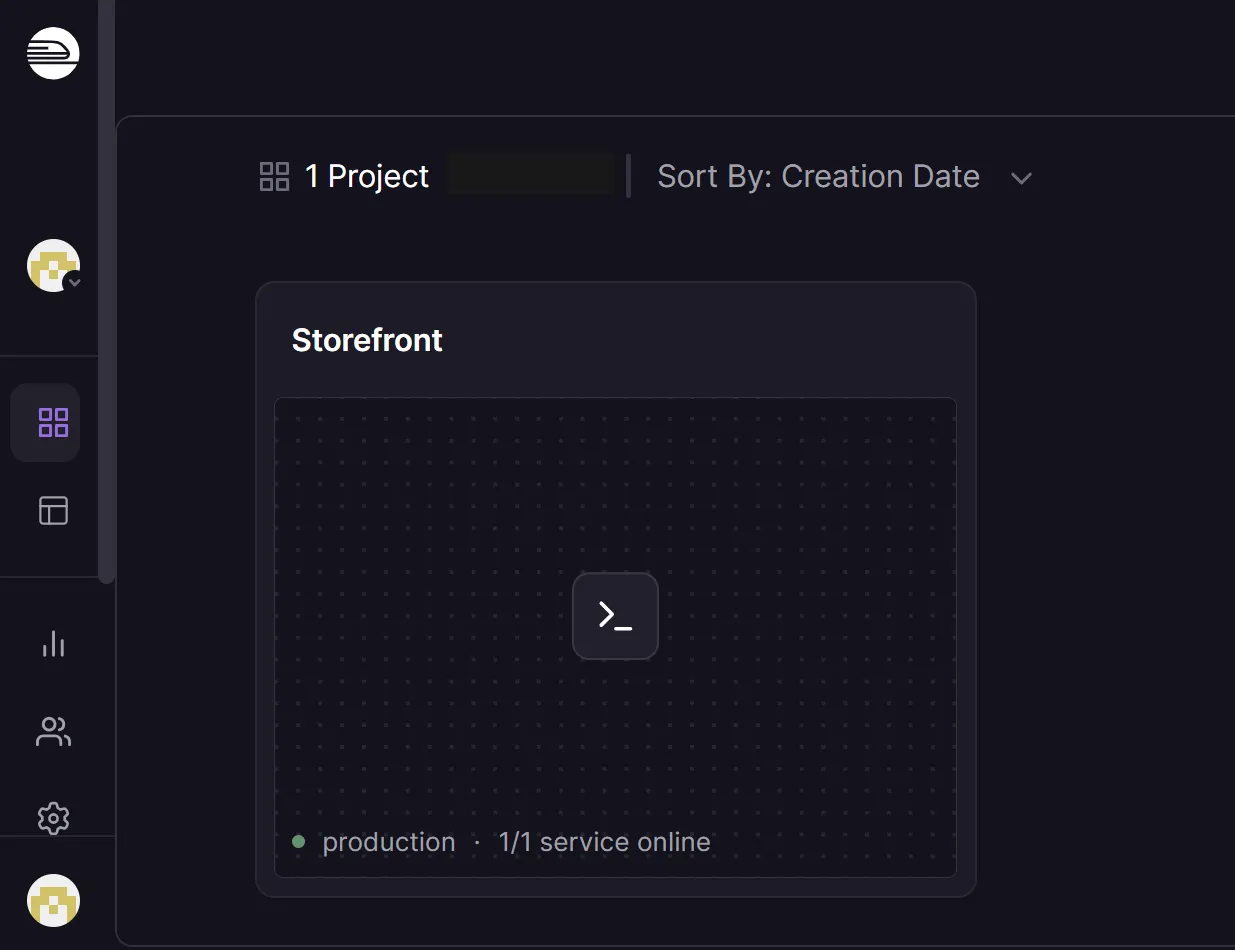
Click on the small >_ icon inside the project tile. This icon represents the Application service and clicking it takes you directly to the service configuration:
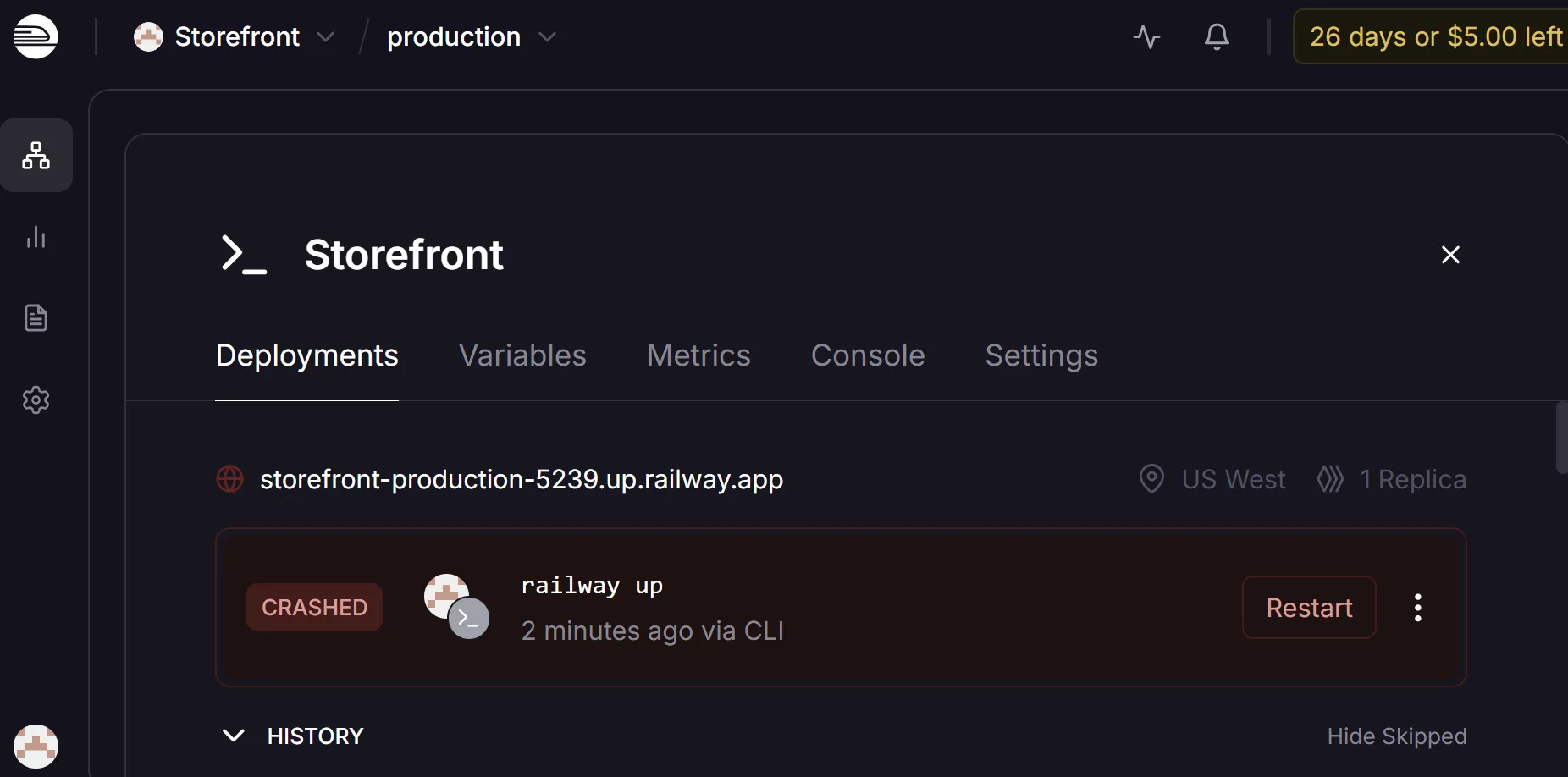
By default, the Deployments tab is selected when you first open the service configuration and this displays the history of your deployments:
From the Service configuration, click the Settings tab. This is where Railway keeps all service level configuration options.
Scroll down to the Networking section. This is where Railway keeps the domain controls:
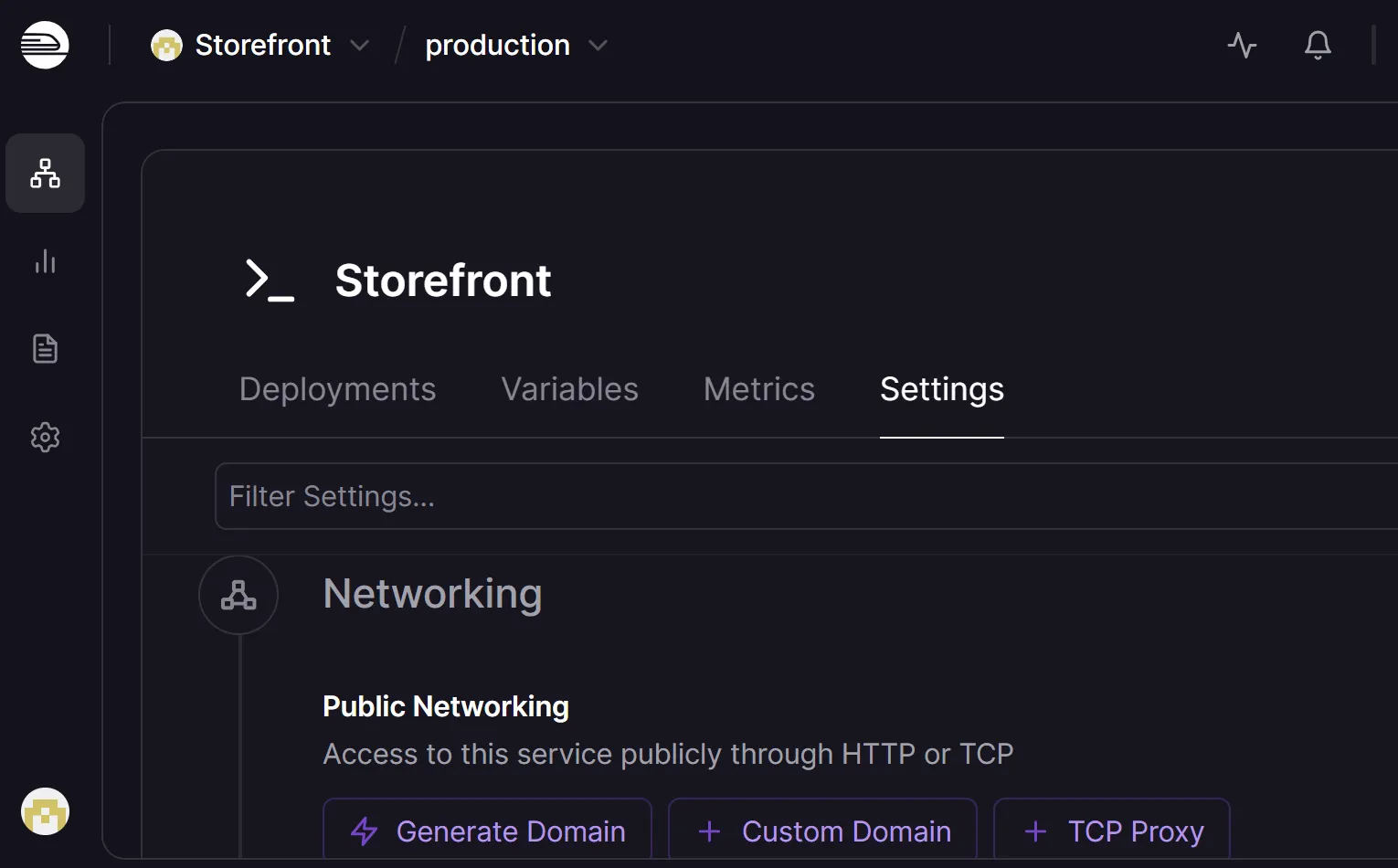
Click Generate Domain
If prompted for a port number, enter 8080, which is the port your ASP.NET Core application listens on inside the container.
After you confirm the port, Railway assigns a unique domain automatically and it becomes active immediately.
Once the domain is generated, it appears in the list below the button, similar to the screenshot below:
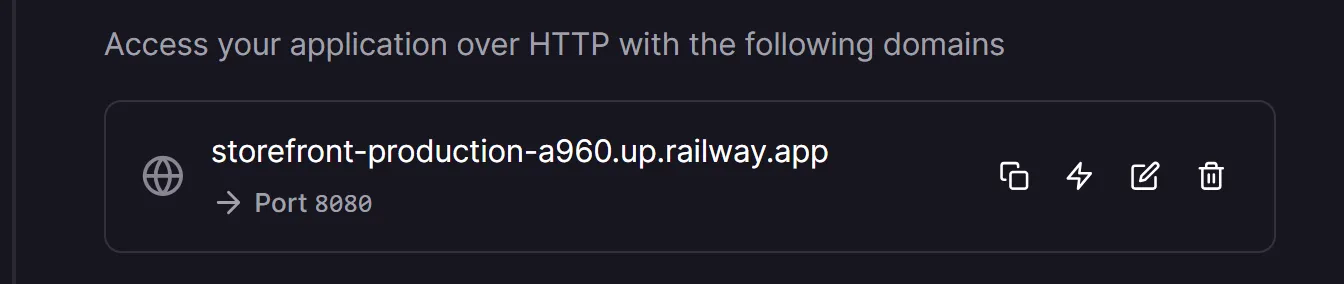
You can click on the generated domain to open your application in the browser. This is the same URL you’ll share with customers, testers, or anyone who needs access to your live site.
If you ever redeploy or update your application, the domain remains the same, only the underlying deployment changes. This makes it easy to iterate on your app without breaking links or updating bookmarks.
At this point, your app has a public URL.
Don’t worry if you see a 404 error when visiting your domain right now; this is expected if the application is still waiting on its database configuration. Once you connect PostgreSQL and re-deploy, your app will come online immediately.
The final part of the deployment config is giving it a production‑grade database, so next we’ll connect your application to Railway’s managed Postgres service.
6. Add a Production-Ready PostgreSQL Database
Your application is deployed but it can’t start yet because PostgreSQL isn’t configured in Railway’s production environment.
In this section, we’ll:
- Create a PostgreSQL database in Railway
- Add the connection string to the service configuration
- Apply the EF Core migrations
6.1 Creating a PostgreSQL database in Railway
Railway makes it easy to provision a managed PostgreSQL database but the UI can be a little confusing the first time you see it. Databases are created inside a service, not at the project level, so you must make sure you’re looking at the correct view before adding one.
To create your database:
-
Open the Railway project dashboard.
You should see your project tile on the canvas (Figure 15-4). -
Click the
>_icon on the project tile.
This opens the service configuration (Figure 15-5). -
Close the service configuration (the Deployments, Metrics, Variables tabs etc.).
This hides the controls you need. Click the X in the top right corner to close it.Now you should see your service tile and an Add button. The button appears at the top right of the canvas, as shown below. This is the correct place to add resources to your project.
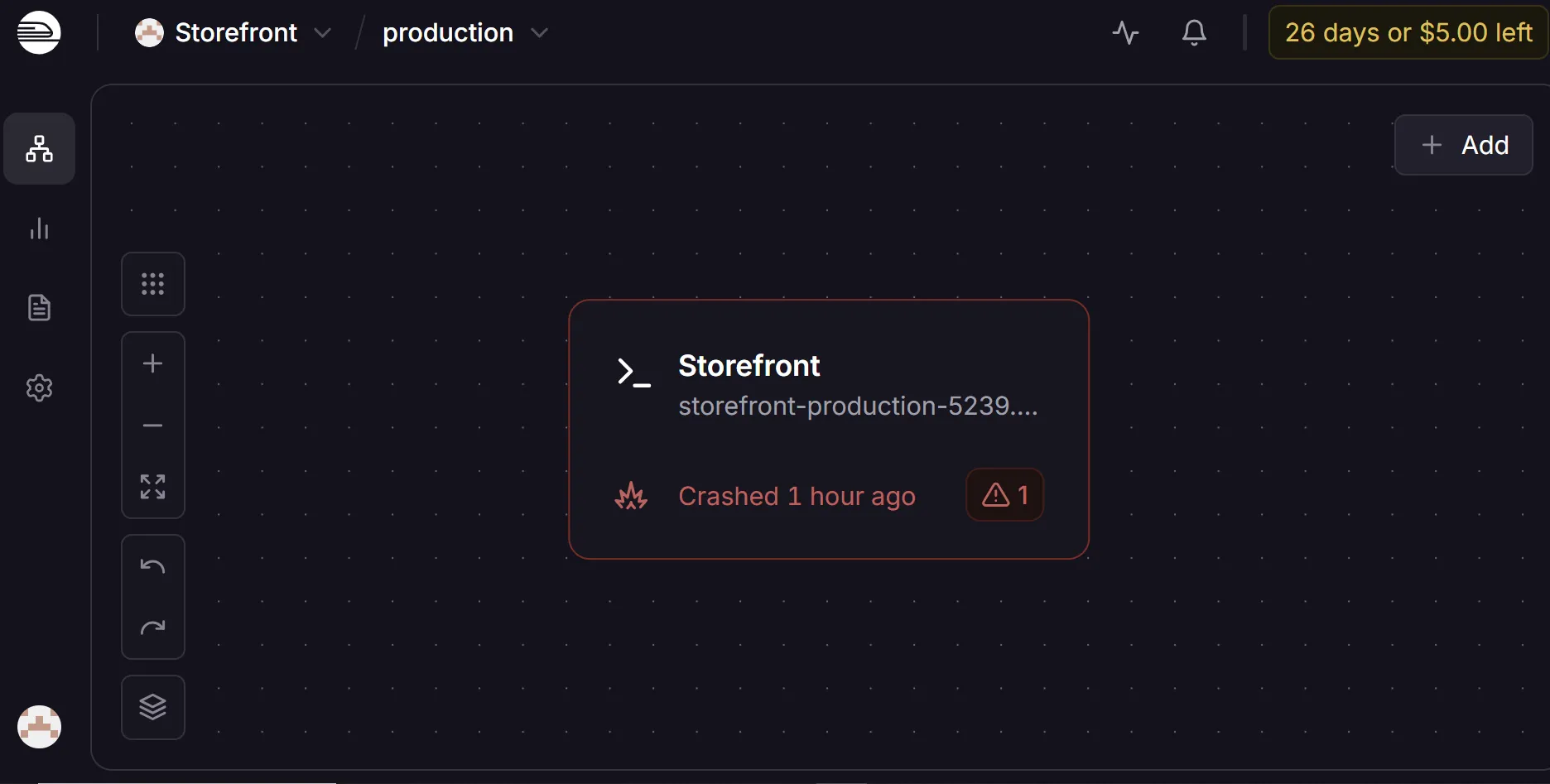
-
Click the Add button.
-
Choose Database from the list of options.
-
Select PostgreSQL as the database type.
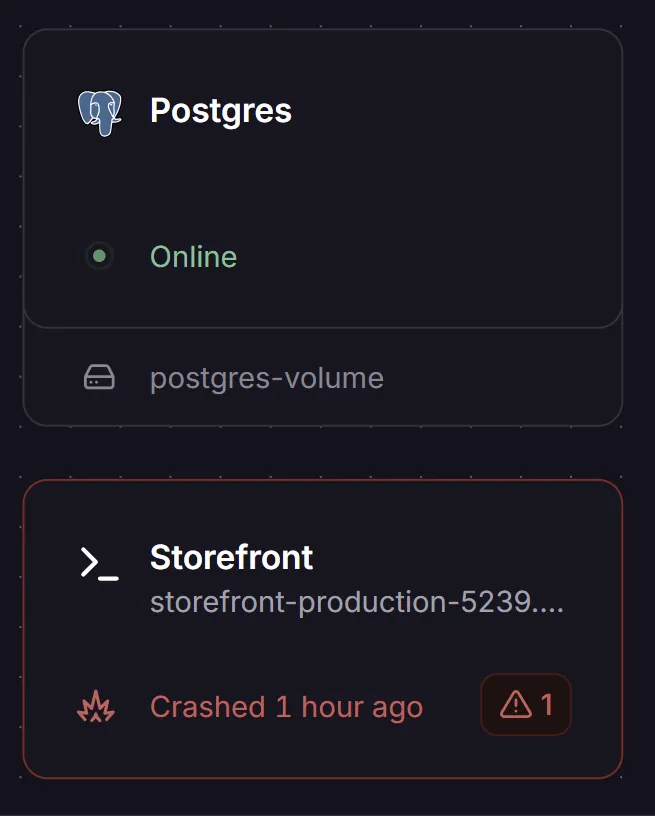
Railway will immediately provision a new Postgres service with sensible defaults and a corresponding Postgres service tile should be added:
6.2 Configure the Postgres connection string
-
Click on the Postgres service tile to open the Postgres service configuration.
Your application needs access to the database connection string. Railway exposes this as an environment variable on the Postgres service and we can reference it directly from the application service without copying or pasting anything. -
Open the Variables tab for the Postgres service.
You’ll see two relevant entries:DATABASE_URL: The internal connection string used by other services in the same projectDATABASE_PUBLIC_URL: A public proxy connection string for external tools
We’ll use DATABASE_URL.
The next step is to make this value available to your application service so the deployed application can read it at runtime.
The application service now needs access to the Postgres connection string so it can connect to the database in production. Railway makes this easy by allowing services inside the same project to reference each other’s environment variables directly.
To configure the application service:
-
Close the Postgres service configuration and click the application service tile.
You should see the familiar tabs: Deployments, Variables, Settings and so on. -
Select the Variables tab.
This is where your application’s environment variables live. -
Add a new variable named
DATABASE_URL.
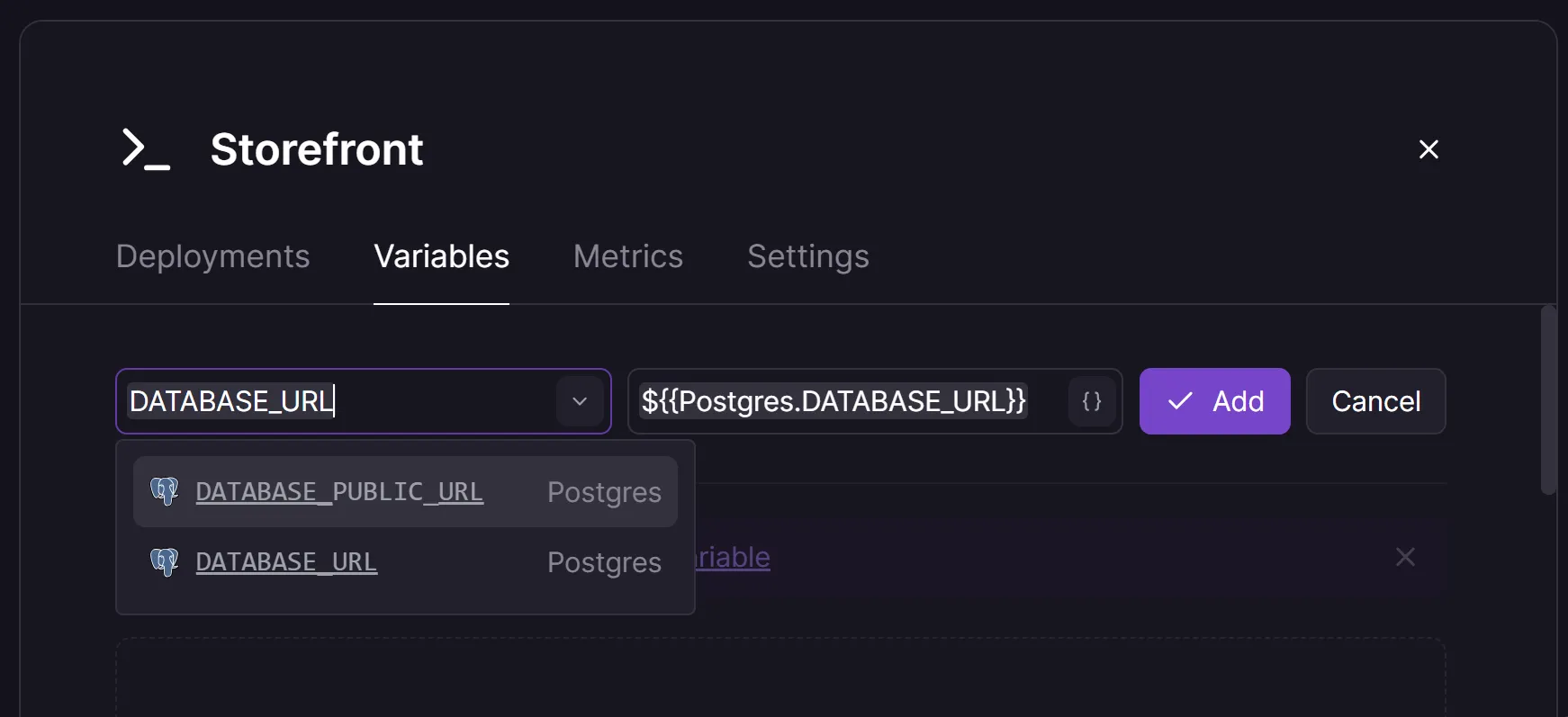
Click the New Variable button to open the variable editor. In the Name field, start typingDATABASE_URL. Railway detects that the Postgres service already exposes a variable with this name and it appears in a dropdown list.
Select it and Railway automatically fills the value field, as shown below:
- Click Add to save the new variable.
Railway stores the change immediately but it does not redeploy the service yet. A Deploy button will appear on the canvas to indicate that the configuration has changed and a new deployment is required:
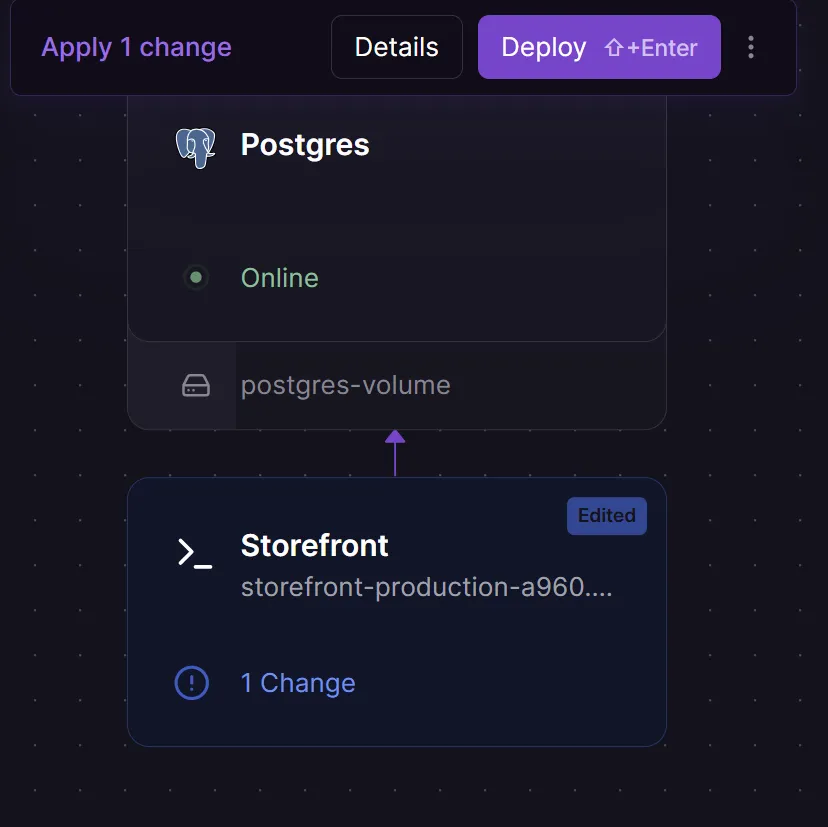
- Click Deploy to apply the updated environment to the running application.
When you link the DATABASE_URL variable to the Postgres service, Railway shows this relationship visually on the canvas. The application service tile now displays an arrow pointing to the Postgres service tile, indicating that the application depends on the database and receives its connection string from it.
If you ever see an edited label on the application tile, it simply means the service configuration has changed since the last deployment; for example, after adding or updating an environment variable. It isn’t an error; it just indicates that a redeploy is needed for the change to take effect.
At this point, your application service has access to the PostgreSQL connection string at runtime.
6.3 Update the Application Configuration for PostgreSQL
Now that Railway has provisioned a managed PostgreSQL database and injected the DATABASE_URL environment variable into your application service, we need to wire up ASP.NET Core to read that connection string and apply your schema automatically on deployment.
In this section, we will:
- Configure
Program.csto dynamically read and parse the database connection string - Add automatic migration execution on production startup
6.3.1 Configure Program.cs Connection String
ASP.NET Core reads configuration hierarchically. Locally, it picks up DefaultConnection from your appsettings.Development.json. When deployed to Railway, ASP.NET Core automatically detects the injected DATABASE_URL environment variable.
Railway supplies the database URL in standard Heroku URI format (postgres://user:password@host:port/database). Because Npgsql expects key-value connection parameters (Host=…;Username=…;), we parse the URI and append explicit SSL parameters (SSL Mode=Require;Trust Server Certificate=true) to guarantee secure communication across cloud networks.
Update the database registration in Program.cs:
// 1. Resolve raw connection string (appsettings locally, or DATABASE_URL on Railway)
var rawUrl = builder.Configuration.GetConnectionString("DefaultConnection")
    ?? Environment.GetEnvironmentVariable("DATABASE_URL");

if (string.IsNullOrEmpty(rawUrl))
{
    throw new InvalidOperationException("No database connection string or DATABASE_URL was provided.");
}

// 2. Parse URI format (postgres://) or key-value format into standard PostgreSQL parameters
string connectionString;

if (rawUrl.StartsWith("postgres://") || rawUrl.StartsWith("postgresql://"))
{
    var uri = new Uri(rawUrl);
    var userInfo = uri.UserInfo.Split(':');

    connectionString =
        $@"Host={uri.Host};Port={uri.Port};
        Username={userInfo[0]};
        Password={userInfo[1]};
        Database={uri.AbsolutePath.TrimStart('/')};
        SSL Mode=Require;Trust Server Certificate=true";
}
else
{
    // Standard key-value format from appsettings.json
    connectionString = rawUrl;
}

// 3. Register DbContext with Npgsql
builder.Services.AddDbContext<ShopContext>(options =>
    options.UseNpgsql(connectionString, npgsqlOptions =>
    {
        npgsqlOptions.EnableRetryOnFailure();
    }));
6.3.2 Auto-Applying Migrations on Cloud Startup
In a local development environment, you typically execute database schema updates manually using the CLI:
dotnet ef database updateHowever, cloud container platforms like Railway build and run your application in isolated Linux containers without an interactive terminal session during deployment.
The industry-standard approach for ASP.NET Core cloud deployments is to execute pending EF Core migrations automatically during application startup; guarded so it only runs in production environments.
Add this migration block to Program.cs right before app.Run():
// Automatically apply pending EF Core migrations when starting on Railway
if (!app.Environment.IsDevelopment())
{
    using var scope = app.Services.CreateScope();
    var dbContext = scope.ServiceProvider.GetRequiredService<ShopContext>();
    dbContext.Database.Migrate();
}

app.Run();
The application now reads Railway’s DATABASE_URL environment variable, converts it into an Npgsql connection string and automatically applies any pending EF Core migrations during startup.
This ensures the PostgreSQL schema stays in sync with your application’s migrations whenever a new version is deployed.
6.3.3 Redeploying and Verifying the Production Database
To apply the updated configuration and automatic migration logic, redeploy the application service:
railway upWhen prompted, select your application service, not the PostgreSQL service.
Railway will build and deploy the updated application. During startup, the application connects to the PostgreSQL database using the DATABASE_URL environment variable configured earlier.
Because we added a call to Database.Migrate(), any pending EF Core migrations are applied automatically when the application starts. If this is the first deployment, EF Core will create the database schema.
You can verify this by reviewing the deployment logs in the Railway dashboard.
Once the deployment completes, open the application’s public URL and perform a few simple database operations to confirm that data is being saved and retrieved successfully.
6.4 Managing Production Configuration
Most real-world applications require configuration values that should not be stored in source control. We’ve already configured the PostgreSQL connection through Railway’s DATABASE_URL variable, but many applications also require additional settings such as:
- API keys
- Email service credentials
- Authentication secrets
- Third-party service configuration
When deploying to Railway, these values should be stored as environment variables rather than committed to configuration files.
To Add Environment Variables: Open your application service in the Railway dashboard and select the Variables tab.
Add any environment variable keys and their corresponding values required by your application. For example:
- Email__ApiKey
- Email__From
- Admin__PasswordHash
You add these keys and variables to your application service in Railway just as you did when adding the PostgreSQL connection string earlier. Railway won’t populate these values automatically; you’ll enter them yourself based on the settings required by your application.
ASP.NET Core automatically maps double underscores (__) to nested configuration sections, allowing environment variables to override application settings in Production.
For example, the environment variable Admin__PasswordHash maps to the following configuration structure:
{
  "Admin": {
    "PasswordHash": "XXXXXX"
  }
}
⚠️ Environment variable names must be entered exactly as expected by the application. Even a small spelling mistake or trailing space can prevent ASP.NET Core from loading the value.
After adding or modifying environment variables, redeploy the application so the updated configuration is loaded.
Once the deployment completes, review the application logs and verify that any features relying on external services are operating correctly.
Your ASP.NET Core application is now running in a real production environment. The application service is deployed on Railway, connected to a managed PostgreSQL database, configured through environment variables and capable of applying EF Core migrations automatically during deployment.
This approach gives you a repeatable deployment pipeline that can be used for anything from small personal projects to larger production applications.